The safest starting point for an installation is the platform’s own download page. Robux World does not host installers, modified clients, or tools that claim to add currency.
Choose the official download route
Open Roblox’s download page and follow the options for your device. Check current compatibility information if you are unsure whether a laptop is supported. Do not choose an installer simply because a search result includes “free,” “latest,” or a familiar icon.
Understand Player and Studio
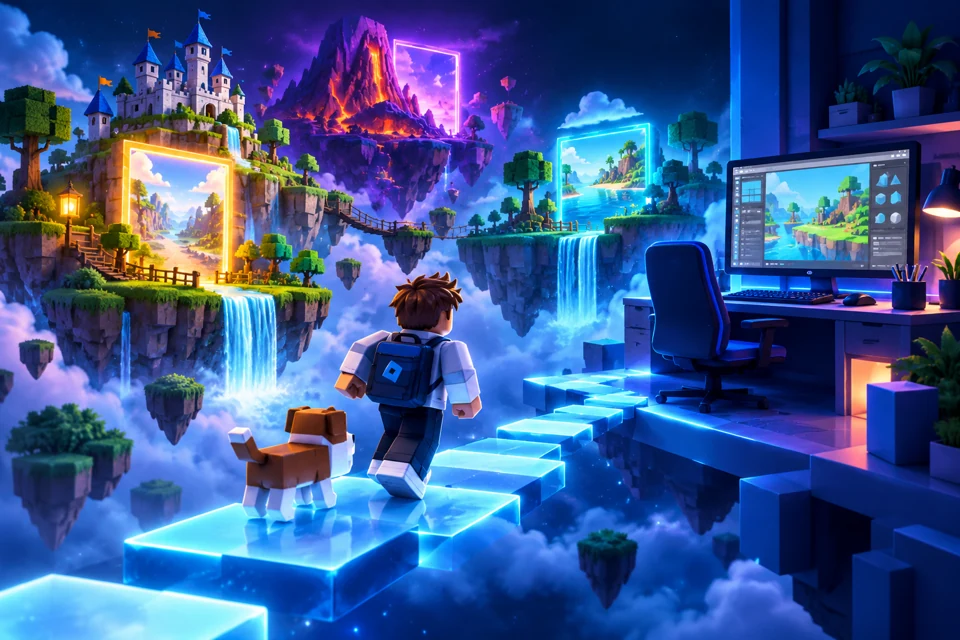
Player is used to participate in experiences; Studio is the creation environment. Choose the tool that matches your goal. A beginner who wants to play does not need a third-party “generator client” or a special currency installer.
Launching from a browser
Roblox’s installation help explains using an experience’s Play button and opening the Roblox application when prompted. A browser launch can still involve an installed player. Read prompts carefully rather than assuming every file request is part of the same process.
For an update or installation problem
Use official support instructions for your operating system. Keep the exact error wording available and avoid disabling security tools based on an unrelated tutorial. If a download page promises both a client update and free currency, evaluate it as a separate, unverified claim.